> ## Documentation Index
> Fetch the complete documentation index at: https://dripart-mintlify-linear-mode-interface-docs-53934.mintlify.site/llms.txt
> Use this file to discover all available pages before exploring further.
# Credits Management
> In this article, we will introduce ComfyUI's credit management features, including how to obtain, use, and view credits.
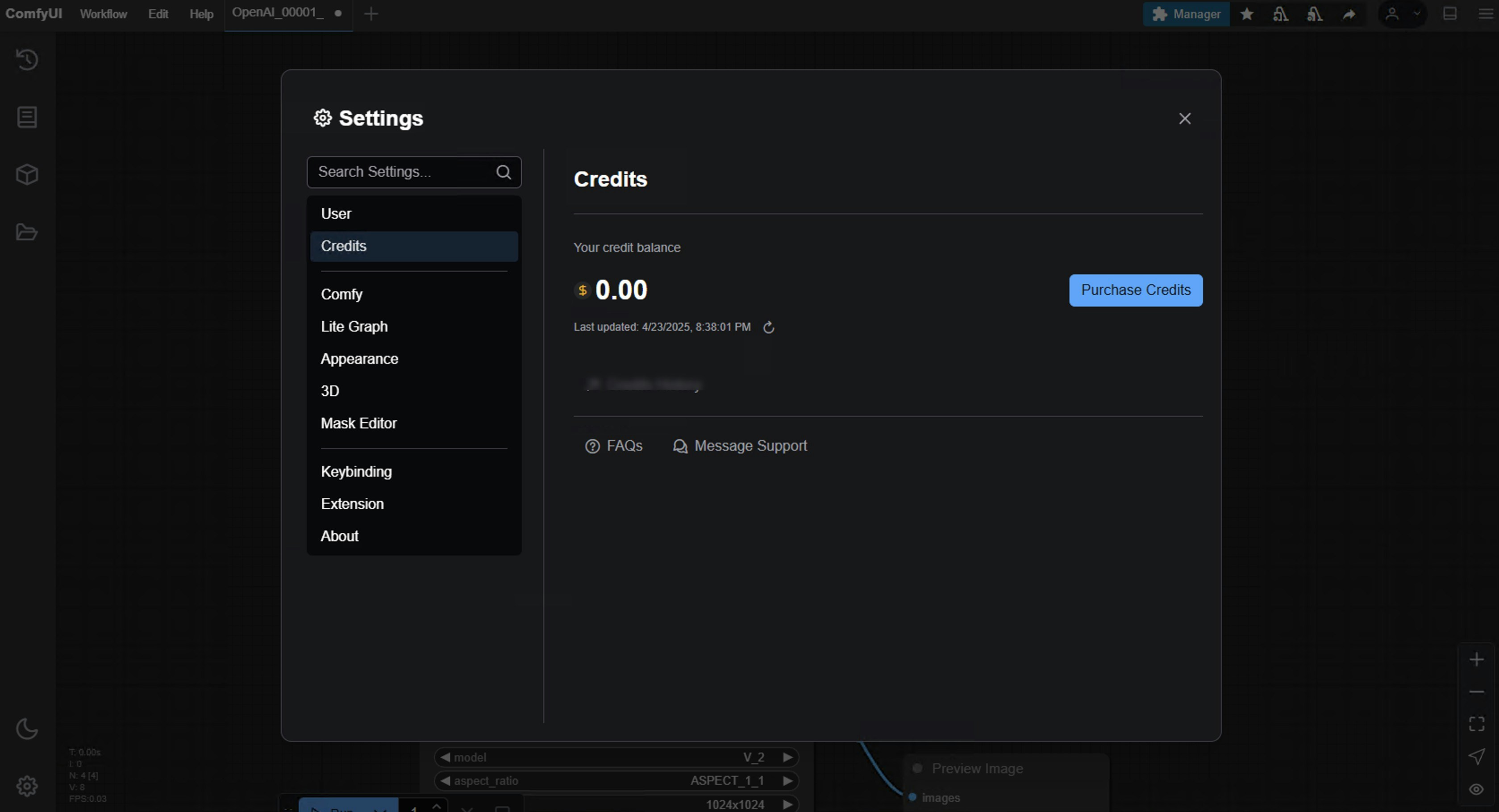
The credit system was added to support the `API Nodes`, as calling closed-source AI models requires token consumption, so proper credit management is necessary. By default, the credits interface is not displayed. Please first log in to your ComfyUI account in `Settings` -> `User`, and then you can view your associated account's credit information in `Settings` -> `Credits`.
 ComfyUI will always remain fully open-source and free for local users.
## How to Purchase Credits?
Below is a demonstration video for purchasing credits:
Detailed steps are as follows:
Log in to your ComfyUI account in `Settings` -> `User`
ComfyUI will always remain fully open-source and free for local users.
## How to Purchase Credits?
Below is a demonstration video for purchasing credits:
Detailed steps are as follows:
Log in to your ComfyUI account in `Settings` -> `User`
 After logging in, you should see the `Credits` option added to the menu
Go to `Settings` -> `Credits` to purchase credits
After logging in, you should see the `Credits` option added to the menu
Go to `Settings` -> `Credits` to purchase credits
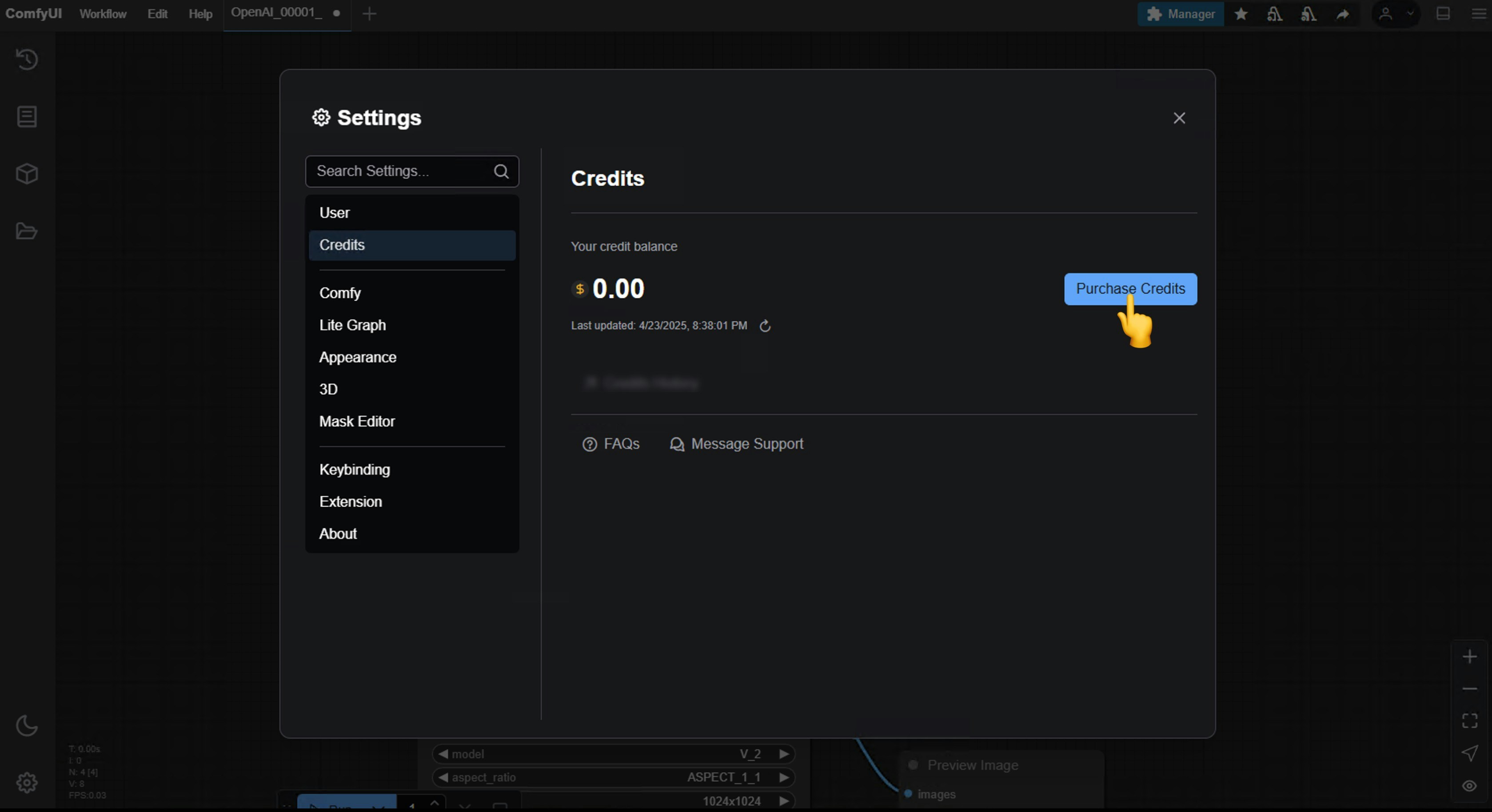
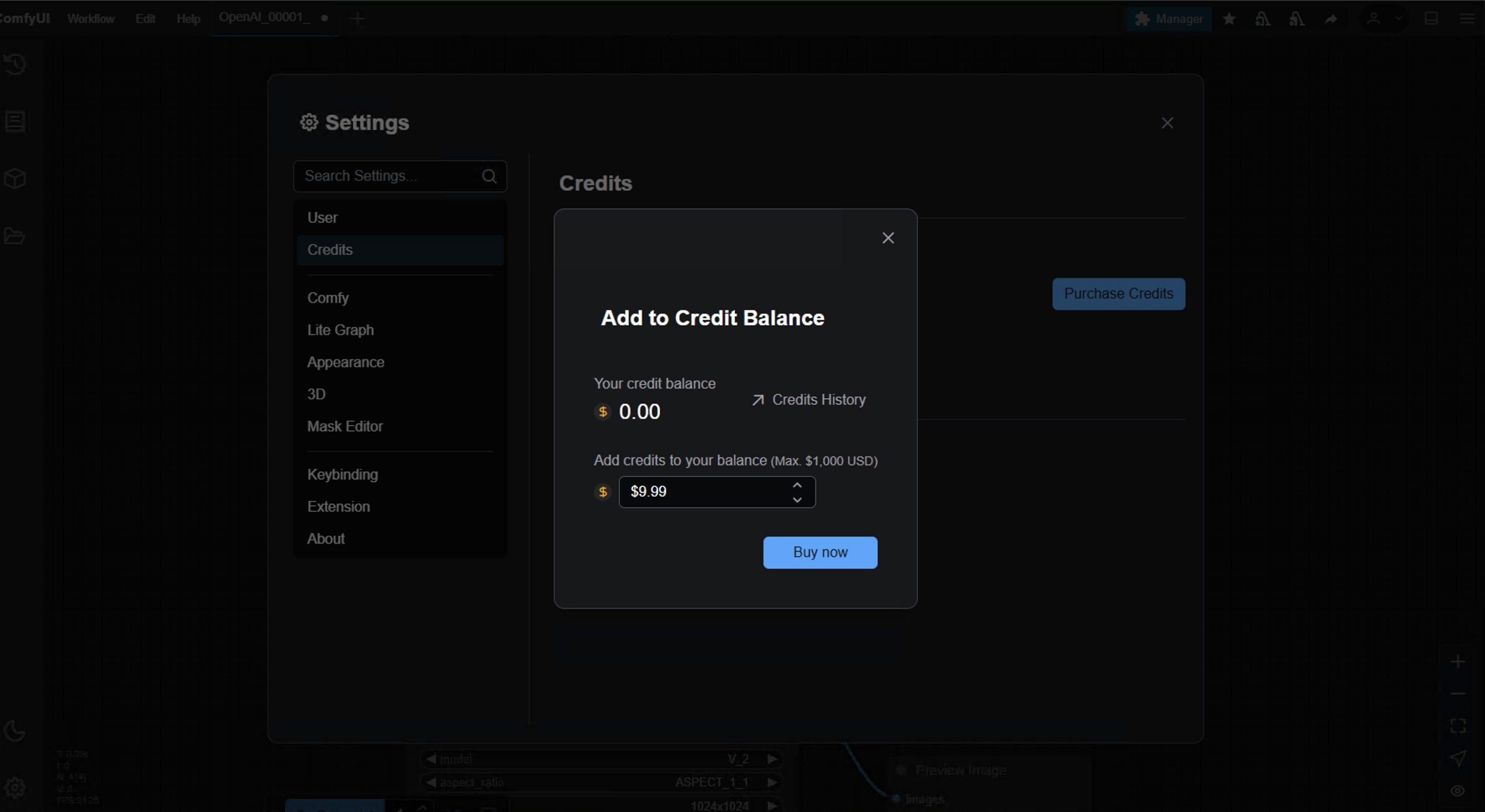 In the popup, set the purchase amount and click the `Buy` button
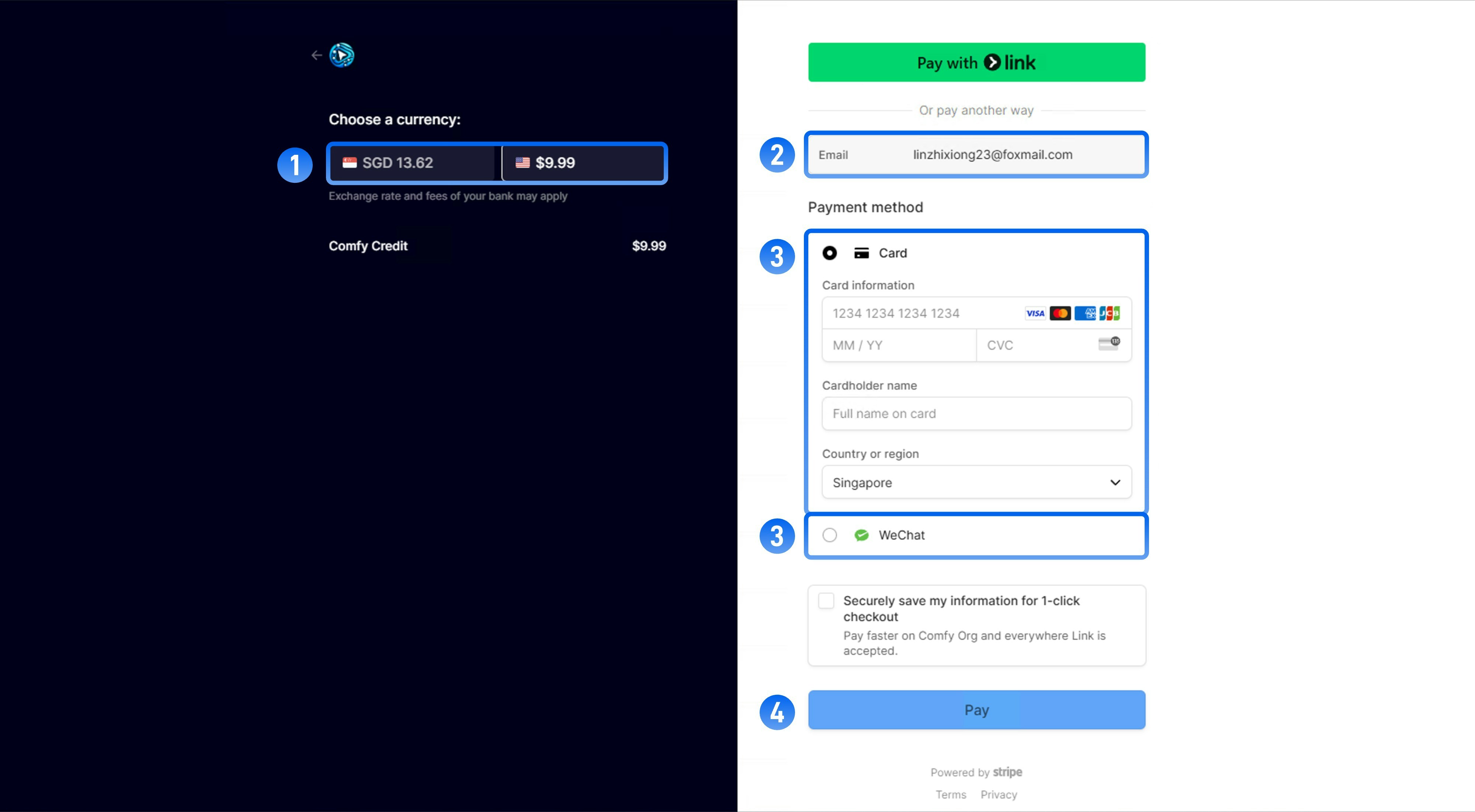 On the payment page, please follow these steps:
1. Select the currency for payment
2. Confirm that the email is the same as your ComfyUI registration email
3. Choose your payment method
* Credit Card
* WeChat (only supported when paying in USD)
* Alipay (only supported when paying in USD)
4. Click the `Pay` button or the `Generate QR Code` button to complete the payment process
On the payment page, please follow these steps:
1. Select the currency for payment
2. Confirm that the email is the same as your ComfyUI registration email
3. Choose your payment method
* Credit Card
* WeChat (only supported when paying in USD)
* Alipay (only supported when paying in USD)
4. Click the `Pay` button or the `Generate QR Code` button to complete the payment process
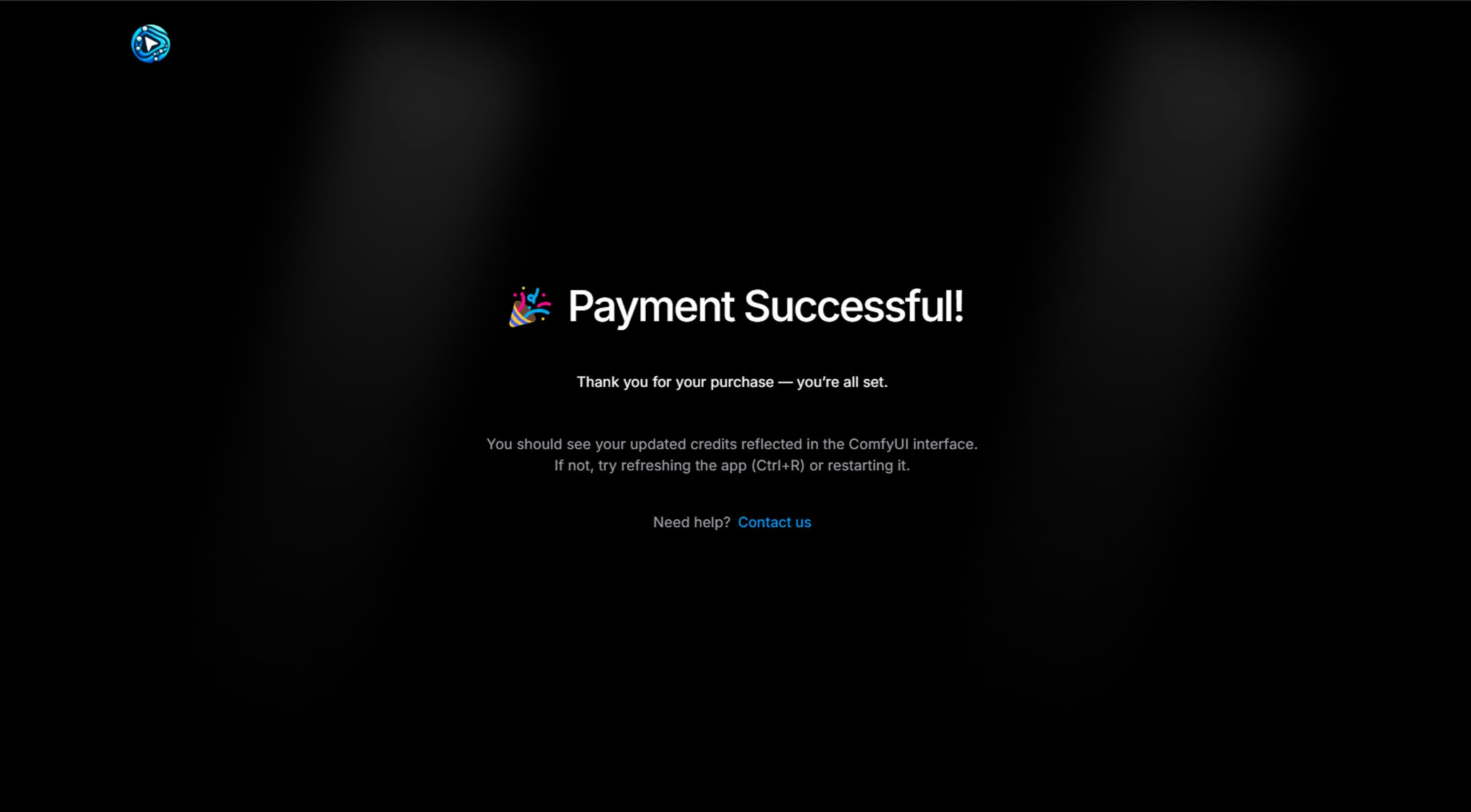 After completing the payment, please return to `Menu` -> `Credits` to check if your balance has been updated. Try refreshing the interface or restarting if necessary
## Frequently Asked Questions
No, when your credit balance is negative, you will not be able to run API Nodes
Currently, we do not support refunds
Click on `Settings` -> `Credits` to see your current balance and access the `Credit History` entry
You can log into the same account on multiple devices, but we do not support sharing credits with other users
Due to different image sizes and generation quantities, the `Tokens` and `Credits` consumed each time vary. In `Settings` -> `Credits`, you can see the credits consumed each time and the corresponding credit history
Please ensure you are paying in USD, as WeChat and Alipay are only supported when paying in USD
Yes, the expiration depends on the type of credits:
* **Monthly credits**: Expire at the end of your billing period
* **Top-up credits**: Expire 1 year from the date of purchase
After completing the payment, please return to `Menu` -> `Credits` to check if your balance has been updated. Try refreshing the interface or restarting if necessary
## Frequently Asked Questions
No, when your credit balance is negative, you will not be able to run API Nodes
Currently, we do not support refunds
Click on `Settings` -> `Credits` to see your current balance and access the `Credit History` entry
You can log into the same account on multiple devices, but we do not support sharing credits with other users
Due to different image sizes and generation quantities, the `Tokens` and `Credits` consumed each time vary. In `Settings` -> `Credits`, you can see the credits consumed each time and the corresponding credit history
Please ensure you are paying in USD, as WeChat and Alipay are only supported when paying in USD
Yes, the expiration depends on the type of credits:
* **Monthly credits**: Expire at the end of your billing period
* **Top-up credits**: Expire 1 year from the date of purchase